Test an Email
Development
We'll go from most isolated (testing the template alone) to the most end-to-end (testing the entire email flow).
Previews
To set up a new preview...
- Create an ActionMailer::Preview class which calls your Mailer's sending methods.
- Make sure your database and server are running. More info: Handshake App Quickstart | Run the App.
- Then, visit https://<your-host>/rails/mailers/<mailer-name>/<method-name>.
- For example https://ashin.handshake.dev/rails/mailers/profile_mailer/all_types_email
- Note that the URL gets the mailer name and method name from the preview file, not the mailer file. You can leverage this feature to create previews of multiple email variations of the same Mailer method at once.
Visit https://<your-host>/rails/mailers/ for the full catalog of all mailer previews.
Mailtrap
When to use
You will not see any Mailgun records for notifications that go to Mailtrap, as these fully bypass the Mailgun step. If you need to work with Mailgun, skip ahead to Mailgun.
One-time setup
- Visit go/mailtrap & sign in through Okta
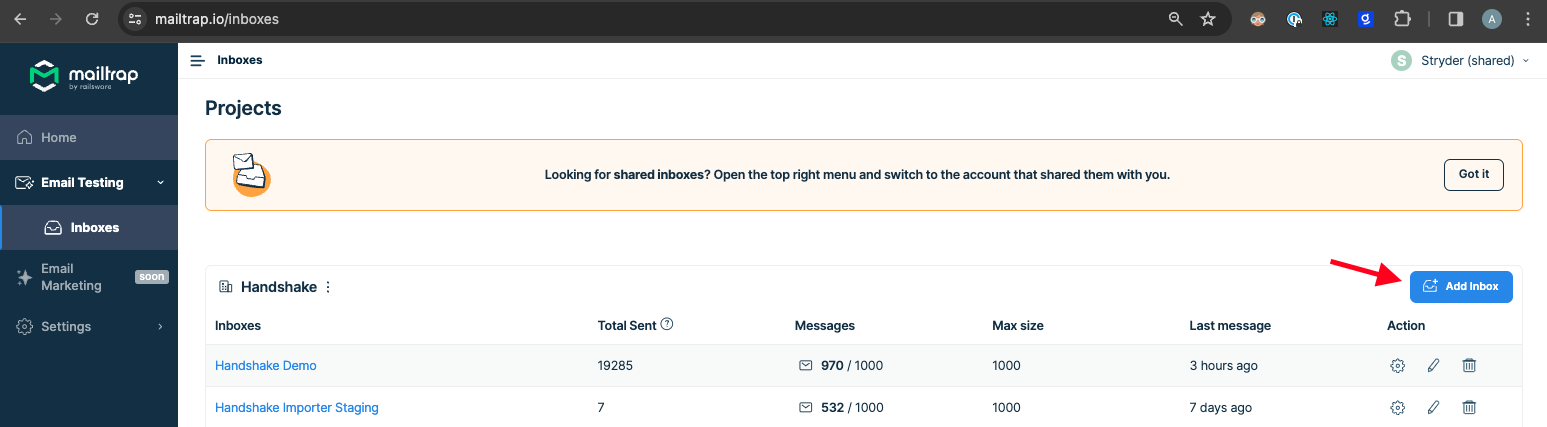
- Create your own inbox
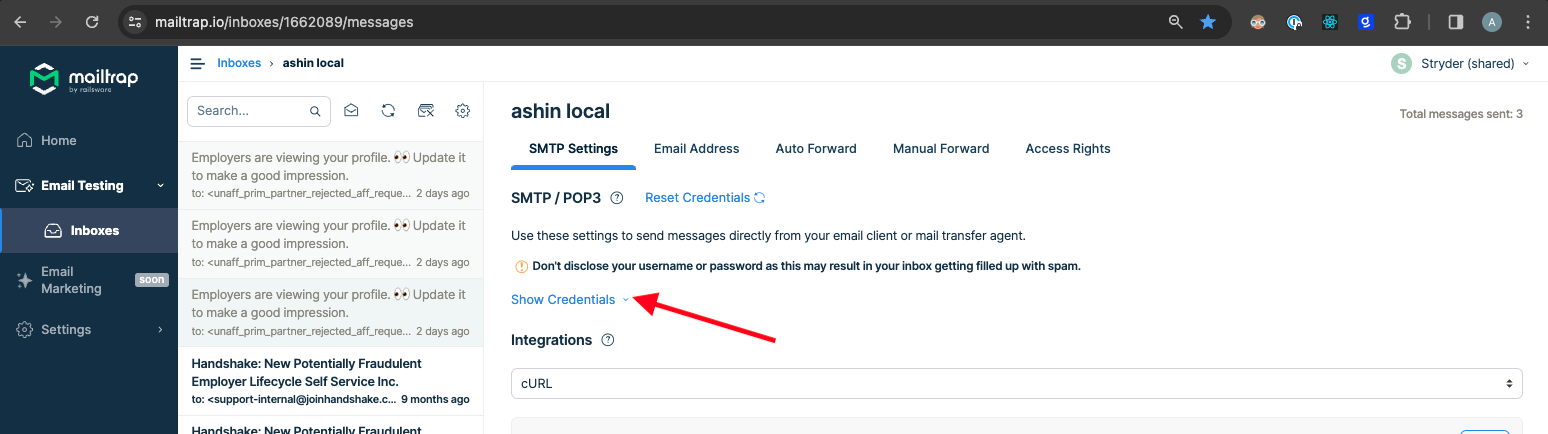
- Check that inbox's SMTP Settings, and click "Show Credentials"
- Set
MAILTRAP_USERNAMEandMAILTRAP_PASSWORDin your .env.development.local, using credentials from step 3
That's it!
Now, when an email is triggered from your development environment, it should land in your Mailtrap inbox.
Mailgun
When to use
In production, we send all emails through Mailgun. It's important to test through Mailgun to get an accurate assessment of what an email flow would look like in production. This flow lands emails in the mailgun-dev@joinhandshake.com inbox.
Setup
- In your .env.development.local, set the following:
SEND_EMAIL_WITH_DEVELOPMENT_MAILGUN_CONFIG= true
MAILGUN_DEVELOPMENT_API_KEY= <"Mailgun-dev Sandbox Private Key" in 1Password HS General Engineers>
- Log in to the mailgun-dev@joinhandshake.com, using the credentials found at "Mailgun Development Gmail Account" in 1Password HS Email Shared. Use 1Password for 2FA.
- Log in to Mailgun go/mailgun, using SSO Google login as mailgun-dev@joinhandshake.com.
As long as SEND_EMAIL_WITH_DEVELOPMENT_MAILGUN_CONFIG is true, our app will try to send through the Mailgun route, rather than the Mailtrap route.
How to trigger an email
How you'll trigger an email depends on how isolated or end-to-end you want to test. You can spin up the Handshake app and try to send an email that way for a full E2E test, but be advised that this may get complicated quickly (Are all services you need for that given action running? i.e. clock? campaigns? mapbox? NSS? NDS?).
To run Notification services, follow instructions in README: https://github.com/joinhandshake/notifications
One way our team tests emails is by calling the mailer in the rails console. It's similar to the code you'd write in the preview file, but with an additional method: .deliver_now. For example:
user = User.where(user_type: "Students").last(2)[0]
views_count = 5
views_data = {
  user_id: user.id,
  views: Employer.last(views_count).pluck(:id)
}
ProfileViewsMailer.with(user: user).email(views_data).deliver_now
Staging
One big disadvantage of testing in development is that static assets do not render properly, due to there being no development CDN or new assets uploaded to the CDN yet at all. Because of this, you may want to test in staging, too.
Emails sent in the staging environment automatically get routed to the Mailtrap "Handshake Staging" inbox. This means that, like in development, Mailgun is completely skipped as a middleman. Unlike development, there's no way to tell staging to send through Mailgun.
To trigger an email, you can either use Teleport + Seira to do so through the command line, or trigger it naturally through https://joinhandshake-staging.com/ + go/testusers
Some tips:
- Make sure you're not in a "sandbox" environment in Seira
- Are you checking the correct inbox (Mailtrap staging inbox)?
Mobile
Testing emails on mobile is important because some people open emails and click links within them on mobile devices.
To learn more about the mobile testing, first read: Testing our iOS app.
The base url in a given email has to match with wherever device is pointed to (i.e. if using TestFlight in staging, url should begin with https://joinhandshake-staging.com).
Production
To view a production-level email on a mobile device, one can hit “resend email” on a Mailgun delivery event log, and resend to your own email or mailgun-dev@gmail.com. Then, view the email on a mobile device.
We are limited in links we can test in production, as our mobile app is only for Student users, thus there’s no Admin user or view-as state1. We can only test links that don’t require a specific user to be logged in, unless that specific user is ourself (our own Student accounts).
Staging
Staging emails sent through Mailgun land in Mailtrap.
Staging testing will generate a login code in our app so that we can log in as test users, so no need for Admin user or view-as state.
Option 1 (links only):
- Set TestFlight to staging environment (more info: Testing our iOS app)
- Log in as the recipient user (go/testusers)
- Copy & paste links from desktop to mobile to test links
Option 2 (rendering only):
- On mobile device’s browser app, use Okta to log in to Mailtrap
- View email in Mailtrap’s “Handshake Staging” inbox
Option 3:
- Set TestFlight to staging environment (more info: Testing our iOS app)
- On our mobile app, log in as the recipient user (go/testusers)
- On mobile device’s browser app, use Okta to log in to Mailtrap
- View email in Mailtrap’s “Handshake Staging” inbox & click test!
Development (RDE)
RDE-triggered emails can land in Mailtrap or mailgun-dev@gmail.com, dependent on ENV variable configuration (refer to sections Mailtrap and Mailgun for more info).
If working with Mailtrap, follow instructions for Staging above, but with TestFlight set to your RDE.
If working with mailgun-dev@gmail.com, the instructions are the exact same, but instead of accessing the email in Mailtrap, access the email by logging in to mailgun-dev@gmail.com (credentials in 1Password vault "Mailgun Development Gmail Account") on your mobile device OR simply forwarding the email from mailgun-dev@gmail.com on browser to an email address you have logged in on your mobile device.